

Commands
Protect has a vast command offering. Everything you need to know about commands is shown in the game using feature-rich interactive system. Just hover over commands to get more information.
How to Use Commands
To use commands, simply execute them in your console or the in-game chat. Many commands support additional parameters, see below.
- [] = optional arguments (in filters, you can use multiple)
- <> = required arguments
TIP: The alias for /protect is /p. You can change it in settings.yml in the Command_Aliases key.
Permissions
Type /protect perms to view all available command permissions.
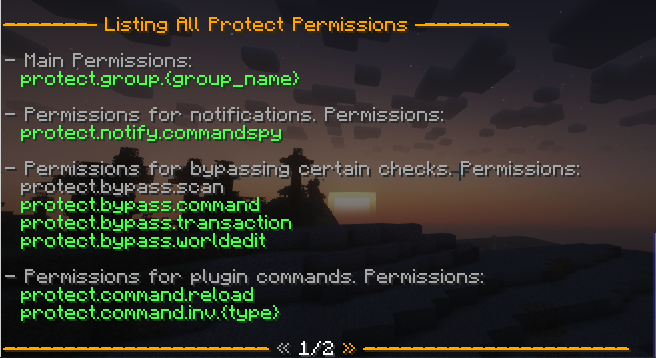
You can also view the required permission directly in the error message when you attempt to execute a command you don't have access to.

Main Commands
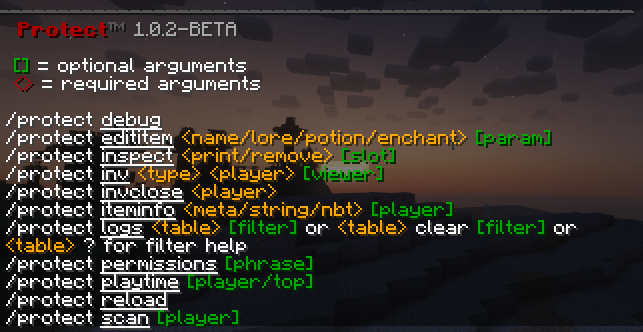
To see more on how commands works and how it can be used, simply hover your mouse over it and additional information will follow.
/protect createrule
Open a menu listing the items you carry and click one to create a rule matching its material, name and lore exactly. The rule alerts staff and confiscates the item, and it is active immediately, no reload needed.
Rules created this way land in rules/generated.rs, a plain rule file you can edit like any other. Items you already have a matching rule for are marked in the menu so you cannot create the same rule twice. Your items stay in your inventory the whole time.
This is the fastest way to block a custom item you found on a player: pick it up, run the command and click it.
/protect debug
If you want to report a bug, run this command. It will compile all files into a single ZIP file that you can then upload to GitHub when creating an Issue. We remove your MySQL password and other sensitive data.
/protect dupe
Allow copies of kit and shop items in duplicate detection, see rules/dupe.rs and the check duplicate operator in Rules. Hold the item and run /protect dupe allow, or click allow copies in the duplicate alert, and its copies are no longer reported. /protect dupe list shows the allowed items, click one to report its copies again.
/protect edititem
Edit properties such as name, lore, enchants or potions of the held item.
/protect inspect
Utility command to view the content of the container you're looking at without opening it and remove items at certain slots. Useful for removing crashed items in containers that can't be viewed as they kick clients.
/protect inv
View player inventory, armor or enderchest content. Offline players are supported.
/protect invclose
Utility command to forcefully close an opened inventory for a player.
/protect iteminfo
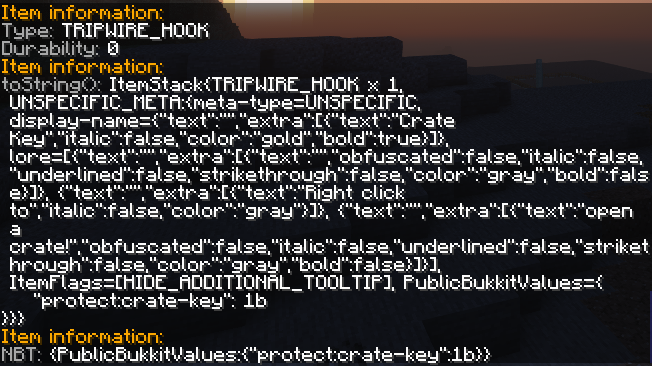
Show your or a player's held item properties: NBT tag, material, id, data, durability and Bukkit toString()
/protect logs
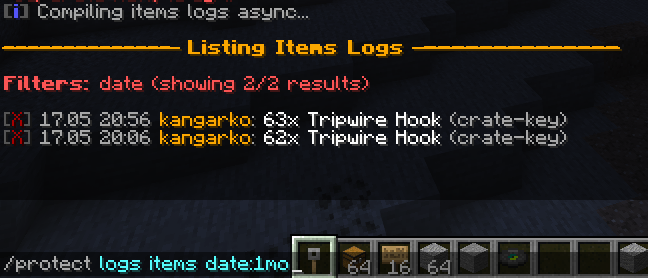
A complex command to view database logs for confiscated items, spied commands or shop transactions. Run /protect logs <tableType> ? to view all of the filtering options.
There are many options, example: /protect logs items date:1h location:here,10 will find all confiscated items in the last hour at your location within a 10-block radius.
Add menu anywhere after the table name, before or after the filters, to browse the same results in a GUI instead of the chat: /protect logs items rule:duplicate menu lists every entry as the item it took, and clicking one opens the entry with the player's inventory as it looked at the scan.
Restoring Confiscated Items
If an item was wrongly confiscated, use /protect logs items to view the log. Click on a log entry to open a GUI showing the confiscated items. From this GUI, you can:
- Drag items from the GUI directly into your inventory to restore them one by one
- Click the restore button to return all items from that confiscation event to the player
Restored items are scanned like any other, so fix the rule first or give the player the protect.bypass.scan permission. A duplicate you give back is reported again for as long as its other copy exists.
/protect perms
Display all plugin's permissions.
/protect playtime
Utility command to display how long a player has played on your server.
/protect reload
Reloads the plugin and its configuration. Some things by their nature, such as listener priorities, console filtering etc. cannot be reloaded. PlugMan is unsupported and may break. Please use /protect reload instead of /rl or plugman and restart as soon as possible.
/protect scan
Manually scan a player's inventory.
/protect export
Export the item in your hand to an NBT JSON string. Usage: /protect export [player] [-console|-file|-chat]. Default copies to clipboard. Use -file to save to the exports/ folder for later import.
/protect import
Import an itemstack from an NBT string and give it to a player. Usage: /protect import <player> chat <json> or /protect import <player> file <filename>. Files are loaded from the exports/ folder.
/protect row
Internal command to manipulate database rows from the logs interface. Usage: /protect row menu <table> <rowId> to view items, or /protect row remove <table> <rowId> to delete a log entry.