Discord Integration
Connect your channels to Discord. Send any message — staff alerts about ads/misbehavior, death messages, etc. — to any Discord channel.
Important
- Give your bot the Manage Messages permission on Discord.
- Set
DiscordChatChannelMinecraftToDiscordto false in DiscordSRV/config.yml. We already stop that relay ourselves, this just saves DiscordSRV the wasted work.
Installation
1) Enable Debug
Debug Mode
Set "Debug" key in settings.yml to "[discord]" and restart. This will save you HOURS and print out what is happening to the console. After you're finished setting up, you can remove this key.
2) Install DiscordSRV
Install DiscordSRV to get started.
Version Compatibility
Warning: DiscordSRV updates frequently and tends to break the API. If you get any errors ask them first.
3) Create Bot and Connect DiscordSRV
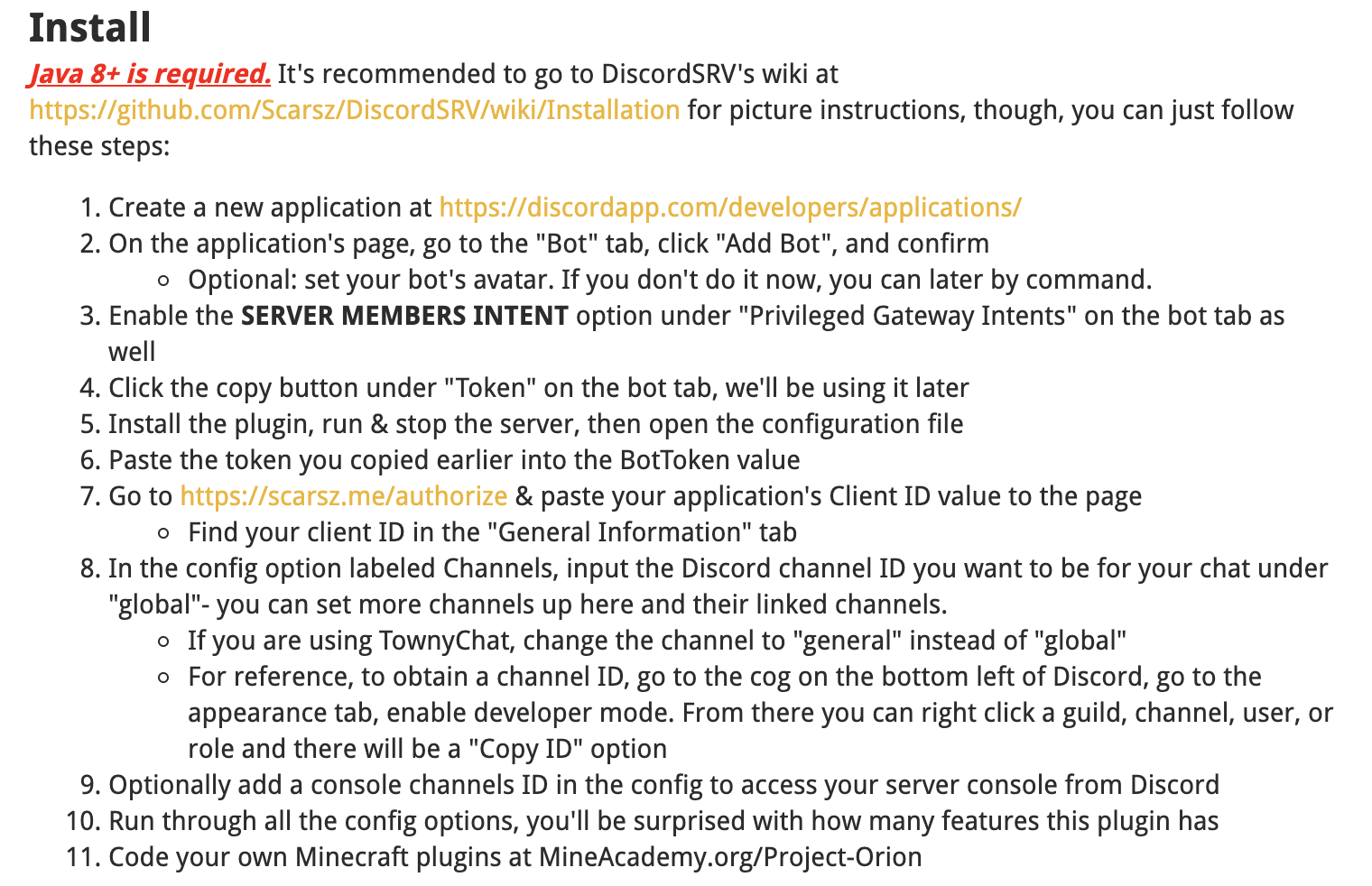
Configure DiscordSRV as per this guide on its resource page (just scroll below and you will see it).
Bot Permissions
IMPORTANT: Ensure to give your bot the ability (permission) to delete/manage messages.
NOTE: The image below may become outdated — check DiscordSRV for up to date info.
4) Link Channels in DiscordSRV
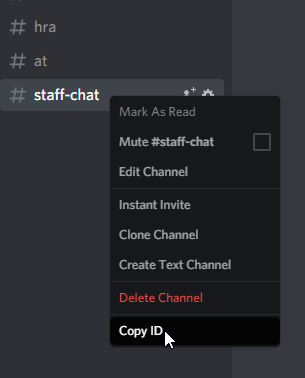
Copy the channel ID of your channels you want connected. Open up Discord client, right click your channel and select Copy ID.
Now open up config.yml in plugins/DiscordSRV. Insert , "channel-name": "channel-id" at the end of Channels or without the initial ',' in case your Channels are empty. Use the exact channel names as you have on Discord. This is how multiple connected channels look like:

5) Link Channels in ChatControl
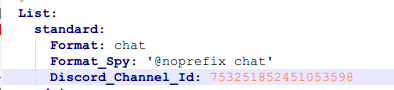
Finally, open ChatControl's settings.yml, go to Channels.List section and paste the channel's ID to the Discord_Channel_Id key for channels you want connected.
Multi-Server Setup
Do this for ALL your servers that you want to link to the Discord channel.
6) (Optional) Send Discord Messages from Rules
You can use the then discord operator in Rules, such as then discord 753251852451053598 Hello world!. Specify the Discord channel ID and the message you want to send there.
Additional Notes
Messages From Other Bots
To bridge another bot's messages, enable Discord.Bridge_Bot_Messages in settings.yml and allow bots in DiscordSRV. See Discord Bot Messages for setup and filtering behavior.
Which Channels Reach Discord
A channel reaches Discord only when you give it a Discord_Channel_Id. Leave the key out of your staff, admin or local channels and nothing they say is posted anywhere.
DiscordSRV has a chat bridge of its own that ignores channels entirely: it takes every message from the chat event and posts it to the one channel mapped to its global game channel. Left running next to ours, it posts your linked channels twice and leaks the unlinked ones into whatever global points at, usually the public mc-chat.
So while Discord.Enabled and Channels.Enabled are both on, we cancel that relay and keep the bridge in the channels. Messages we send ourselves are untouched, which is why plugins such as InteractiveChat still get to edit them on the way out. If you would rather let DiscordSRV carry the chat, set Discord.Enabled to false in settings.yml and we stay out of its way.
Proxy Integration
If you have proxy enabled and your channel has Discord on, messages are sent to both proxy and Discord. If the other server has DiscordSRV installed, it will not send to Discord to avoid duplication.
We recommend having DiscordSRV installed on all servers from which you want to send or receive Discord messages.
Rules and Mentions
If you want rules and filtering for Discord messages, the @ mentions or your other Discord plugin may not work.
When you send a message to Discord, by default we unsend it and resend it through our own system (Discord doesn't let developers edit messages sent by other players). This makes filtering functional but poses some limitations. You can turn this off:
Discord:
  Send_Messages_As_Bot: false
Attachments From Discord
Files, images and other attachments posted on Discord are bridged into Minecraft as clickable [filename] links that open the file in the player's browser when clicked, with the URL shown on hover. Attachment names and URLs are displayed separately from the text checked by rules. Messages containing only attachments still count toward chat delay and message limits when Discord.Filter_Chat is enabled.
You can change how each attachment looks with the Attachment_Format key. It accepts MiniMessage and two placeholders: {url} for the attachment link and {filename} for its name. Multiple attachments are joined by a space.
Discord:
  # Default: clickable [filename] with the URL on hover
  Attachment_Format: "<click:open_url:'{url}'><hover:show_text:'{url}'>[{filename}]</hover></click>"
For example, to show the filename in grey, italic and underlined instead of brackets:
Attachment_Format: "<grey><i><u><click:open_url:'{url}'><hover:show_text:'{url}'>{filename}</hover></click></u></i></grey>"When Send_Messages_As_Bot is true, the bot re-uploads attachments to the same Discord channel before deleting the user's original message. This keeps the links working in both Discord and Minecraft. If a file is too large to re-upload or the network call fails, the attachments are dropped from that single message and a warning is logged; the text part of the message is still delivered.
Emojis
Discord only turns :shortcode: into an emoji for people typing in its own client. Anything a bot posts is stored exactly as sent, so :skull: arrives as plain text. To show an emoji on Discord you must send either the emoji character itself, or <:name:id> for one of your server's custom emojis. Print that code by typing \:name: on Discord and sending it.
That leaves a gap when your in-game text and your Discord text want different characters — a resource pack glyph, an ItemsAdder shortcode or a unicode emoji in game, a custom Discord emoji on Discord. Map them once with Replacements_To_Discord and every message keeps its own wording:
Discord:
  Replacements_To_Discord:
    ":heart:": "❤"
    "☠": "<:skull:753251852451053598>"
    "<green>⬤": "🟢"
    "<red>⬤": "🔴"
We apply this to every message we send to Discord: channel chat, join/quit/kick/death/timed messages, spy, dynmap chat and the then discord operator. What players see in game is not touched, so a single death message variant can read ☠ {player} was slain in game and <:skull:753251852451053598> Notch was slain on Discord.
Start a key with one color to only replace text shown in that color in game, so the same character can map to different Discord emojis: <green>⬤ for join messages and <red>⬤ for quit messages, both using the same ⬤ character. & codes and MiniMessage tags both work, and RGB colors match their closest chat color, so <#55ff55> and <green> mean the same key. Decorations such as <bold> are ignored, both in the key and in the message. A key without a color matches the text in any color, which makes it the fallback when no colored key fits.
Replacements are literal, not regular expressions. Colored keys always win over plain ones, otherwise they run in the order you write them.
Webhooks
If you enable Webhook, custom emojis from other Discord servers only render when @everyone has the Use External Emojis permission in that channel.
The other direction is Remove_Emojis. Keep it on false and emojis people type on Discord reach Minecraft as :smile: tags for plugins such as ItemsAdder to render, while the message on Discord keeps the emoji itself. Set it to true to strip emojis everywhere.
Troubleshooting
Discord → Minecraft rules triggering incorrectly
When messages come from Discord into Minecraft, your chat rules will process them. If you have emoji-related or special character rules, they may trigger on Discord messages. Use the ignore discord operator in your rules to prevent this, or require discord to create Discord-only rules.
deny silent not deleting Discord messages
The then deny silently operator hides the message from other Minecraft players. ChatControl also attempts to delete the original Discord message, so give your bot the Manage Messages permission. Rules apply when Discord.Filter_Chat is enabled, independently of Send_Messages_As_Bot.
Discord channel text formatting issues
Discord uses its own formatting (bold with **, italic with *, etc.) while ChatControl uses MiniMessage. These are not automatically converted between platforms. Format your Format_To_Discord without MiniMessage tags, and your Format_From_Discord without Discord markdown.
Format_To_Discordcontrols how Minecraft messages appear in Discord. Use plain text or Discord markdown here — do not use MiniMessage tags like<#123456>as Discord won't render them.Format_From_Discordcontrols how Discord messages appear in Minecraft. Use MiniMessage formatting here — do not use Discord markdown like**bold**as Minecraft won't render it.
Channels.Format_Discord is the default for Minecraft messages sent to Discord. A channel's Format_To_Discord overrides it for Minecraft authors only. An empty Format_To_Discord disables that channel's outbound messages; an absent value uses the global default.
When Discord.Send_Messages_As_Bot is enabled, Discord authored messages are reposted using Channels.Format_Discord. A server prefix in Format_To_Discord therefore applies only to Minecraft authors. Format_From_Discord changes what Minecraft players see and does not change the bot's repost. If it is absent, incoming messages use the channel's ordinary Format.
An empty or blank Channels.Format_Discord disables bot reposts and attachment uploads while preserving the original Discord message. A format that produces no visible text also leaves the original message in place. Minecraft delivery and explicit Format_To_Discord overrides still work.
For example:
Channels:
  Format_Discord: "({player_name}) {message}"
  List:
    global:
      Format: global-chat
      Format_To_Discord: "({server_name}) ({player_name}) {message}"
      Format_From_Discord: "<gray>({player_name}) {message}"
The former per channel Format_Discord key migrates into whichever directional keys are absent. Explicit Format_To_Discord and Format_From_Discord values take precedence. The migrated legacy key is removed from the saved configuration.
Each backend with DiscordSRV receives incoming Discord events independently. ChatControl does not forward those events through Velocity, and proxy chat deduplication does not coordinate bot reposts. Keep Channels.Format_Discord consistent across backends. If Discord text filtering and bot reposts are unnecessary, set Send_Messages_As_Bot to false on every backend to retain the original Discord message.
DiscordSRV grabbing messages suppressed by rules
With Channels.Enabled on this cannot happen, we stop DiscordSRV's relay outright.
With channels off, DiscordSRV reads the chat event itself and is your only bridge, so a message your rules killed can still reach it. Adjust your Listener Priorities so ChatControl processes messages before DiscordSRV. Note that deny silently deliberately leaves the chat event running so the writer still sees the message, which means no priority setting stops DiscordSRV from relaying it.
Duplicate messages appearing
Set DiscordChatChannelMinecraftToDiscord to false in DiscordSRV's config.yml. If using proxy, ensure only one server has DiscordSRV installed to avoid duplication.
A private channel shows up on Discord
Remove the Discord_Channel_Id key from that channel in settings.yml. If the channel never had one, DiscordSRV's own relay is posting it, so update ChatControl or set DiscordChatChannelMinecraftToDiscord to false in DiscordSRV's config.yml.
Nothing reaches Discord after updating
Your channels are missing Discord_Channel_Id. Older builds let DiscordSRV's own relay carry the chat, which is what leaked the private channels; now every channel decides for itself. Add the key to each channel you want bridged, see step 5.